ChangAI Setup Guide
Introduction
ChangAI is an open-source AI assistant for ERPNext that changes how you interact with your business. Instead of clicking through menus or building complex reports, you can simply ask your ERP a question as if you were talking to a teammate.
Whether you need to know your top customers or check low stock, ChangAI understands your words, finds the data in your system, and gives you the answer instantly.
Why use ChangAI?
- ⚡ No more manual reporting. Ask a question, get the data.
- 🧠 It understands your specific items, customers, and business settings.
- 🛠️ You choose whether to keep data processing local or use high-powered cloud AI.
- 📈 It includes a "Training Mode" that helps the AI learn your specific business language.
Current Focus & Roadmap
Currently, ChangAI provides deep integration for ERPNext core modules, including:
- Sales: Track revenue, customer trends, and outstanding invoices.
- Purchase: Monitor supplier performance and procurement costs.
- Stock: Get instant alerts on low stock and warehouse movement.
Upcoming Expansion
We are rapidly expanding the system's capabilities. Future updates will include:
- Custom Frappe Apps: Query your own unique DocTypes effortlessly.
- HR & Payroll: Instant insights into employee records and salary structures.
- Project Management: Real-time tracking of tasks and timelines.
1. Installation
Follow these simple steps to add ChangAI to your system:
Step 1 — Access your Bench
cd frappe-bench
Step 2 — Fetch the App
bench get-app https://github.com/ERPGulf/changAI.git
Step 3 — Deploy to Site
bench --site [your-site-name] install-app changai
Step 4 — Update & Build
bench --site [your-site-name] migrate
bench build
Step 5 — Finalize
bench restart
💡 Tip: After installation, search for the ChangAI Settings DocType in the Awesomebar.
2. Configuration Overview
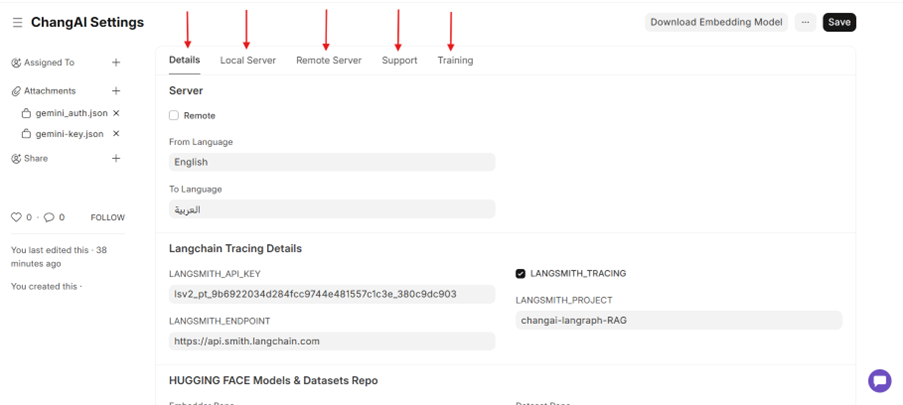
The ChangAI Settings page is your central hub. It is divided into several key tabs: Details, Remote Server, Support, and Training.
3. Deployment Options
ChangAI supports two distinct deployment architectures:
1. Local Retrieval (Recommended)
The search for your data structure happens on your server. It then uses Google Gemini to write the final SQL query based on that search.
Setup:
1. Details Tab
Ensure the Remote checkbox is NOT checked.

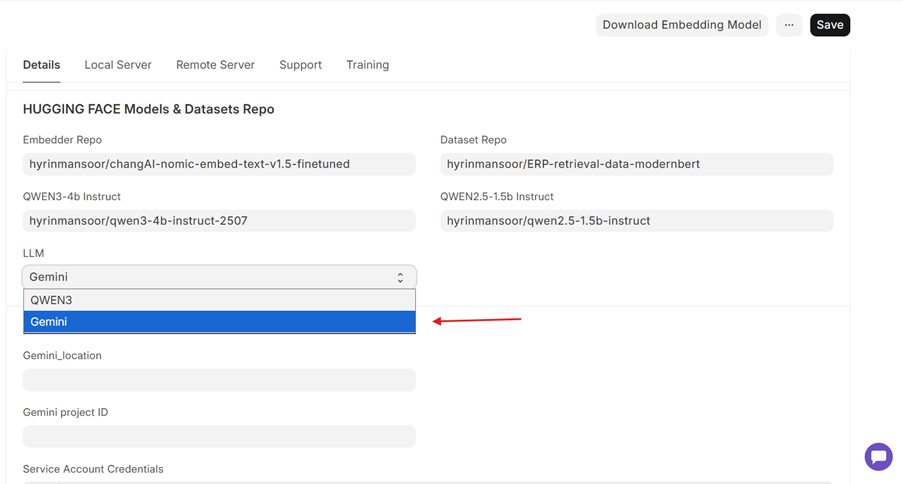
2. LLM Selection
Choose Gemini from the dropdown menu.
3. Configure your Gemini Version
ChangAI supports both the Free and Paid (Enterprise) versions of Gemini. Choose the one that fits your needs:
- Free Version (Gemini AI Studio)
- Setup: Simply paste your Gemini API Key.
- How to get it: Generate a key for free at Google AI Studio.
-
Paid Version (Vertex AI)
- Setup: You must fill in the Gemini Location, Project ID, and attach your Service Account JSON credentials.
- How to get it: This is managed through your Google Cloud Console.
4. Download Model
Click the Download Embedding Model button at the top of the page. This is a one-time step to set up the local search "brain."
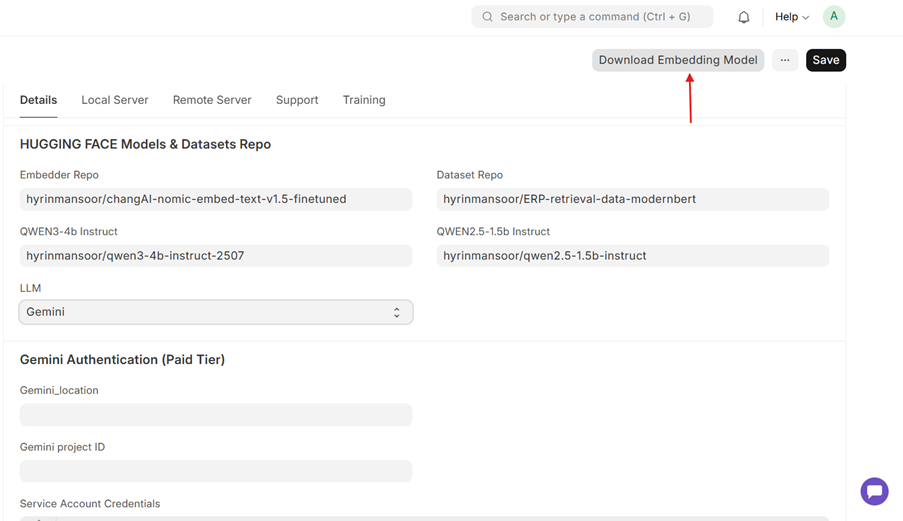
Once you completed this the local setup, now you can save and and reload and open your chat ui and test.
2. Remote Retrieval (Advanced)
Both the data search and the SQL generation (via Qwen3) happen on Replicate’s cloud servers.
Setup:
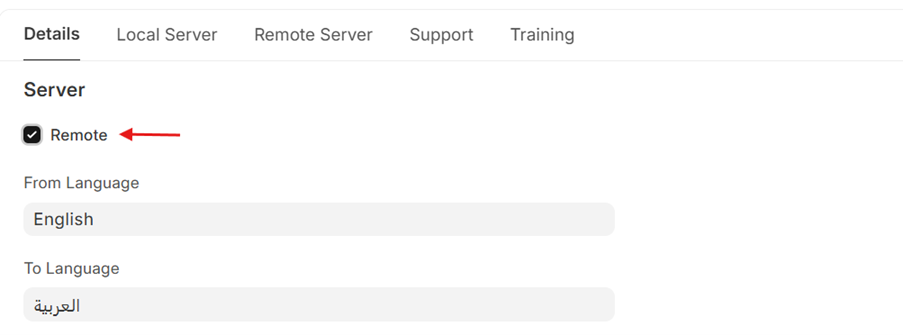
1. Enable Remote
In the Details tab, check the Remote box. Also change the LLM in the Details tab to Qwen3 instead of Gemini.
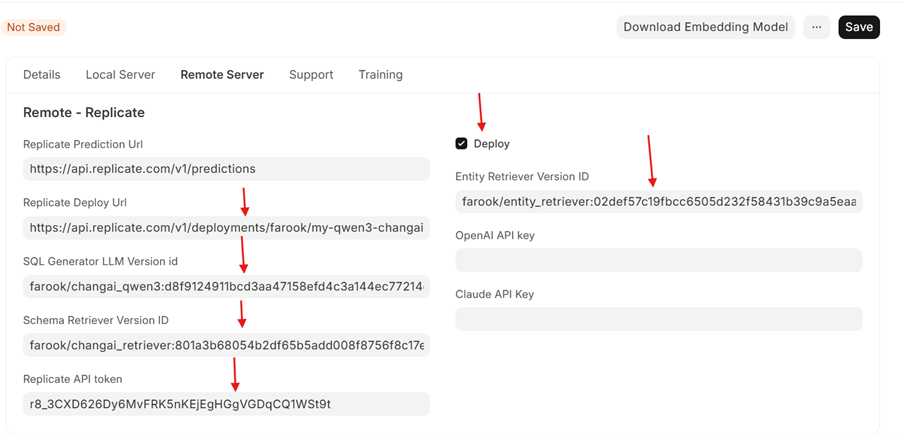
2. Replicate Details
In the Remote Server tab, provide the following:
- Replicate API Token
- Version IDs for Schema, Entity, and SQL Generator (Qwen3).
3. Deployment URL
Provide your Replicate Deployment URL and enable the Deploy checkbox.
For more details, you can watch this episode:
https://www.youtube.com/watch?v=_HDwoLMKr1g
Support Tab
Directly submit tickets via the Support tab. You can configure your own ticket URL and form endpoints to manage user requests.
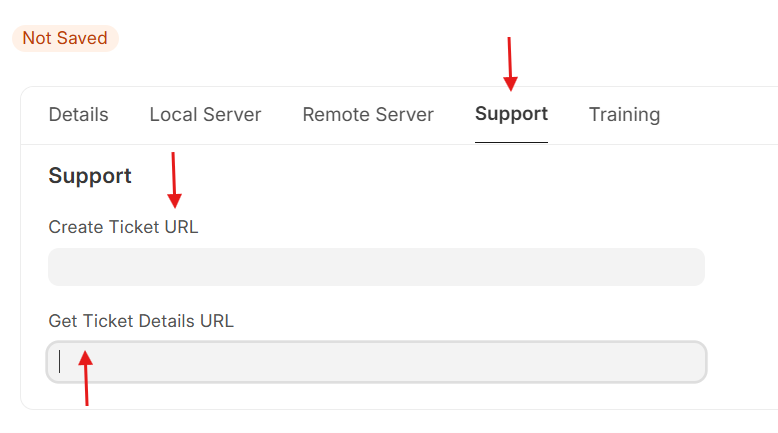
⚠️ Note: This feature is currently in Inactive development.
Training Tab
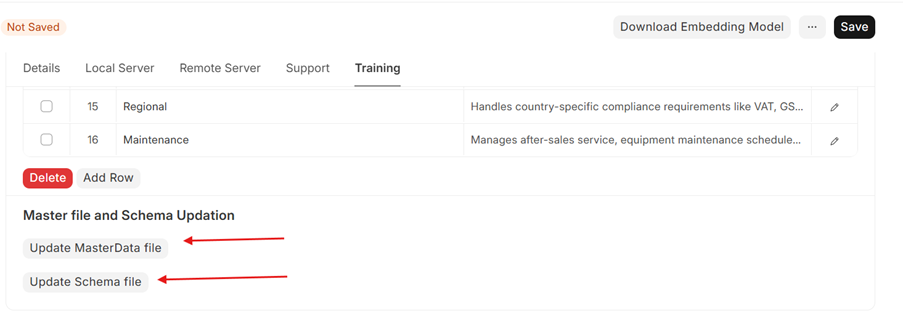
Schema & Master Data Updates
To keep the AI accurate, you must sync it with your ERP data:
- Update Master Data: Syncs your latest Customer names, Item codes, and Supplier details for precise detection.
- Update Schema File: Updates the AI’s understanding of your DocTypes and any custom fields you’ve recently added or changed.
Automated Training
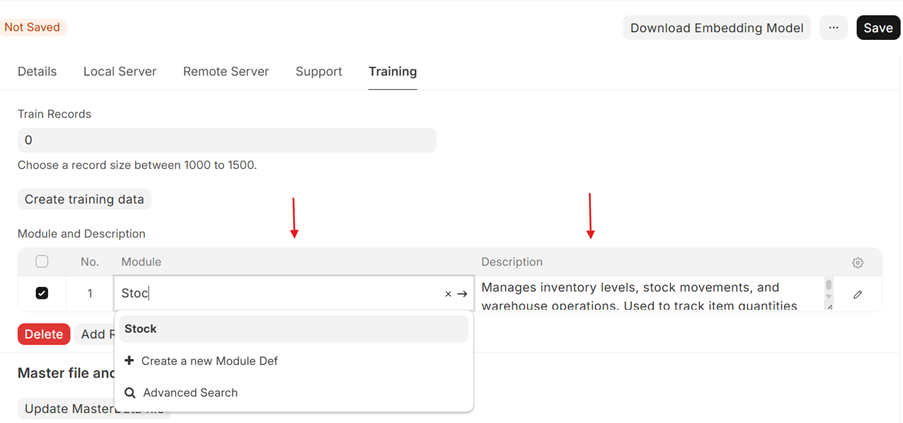
ChangAI can "learn" your specific business logic via the Training tab.
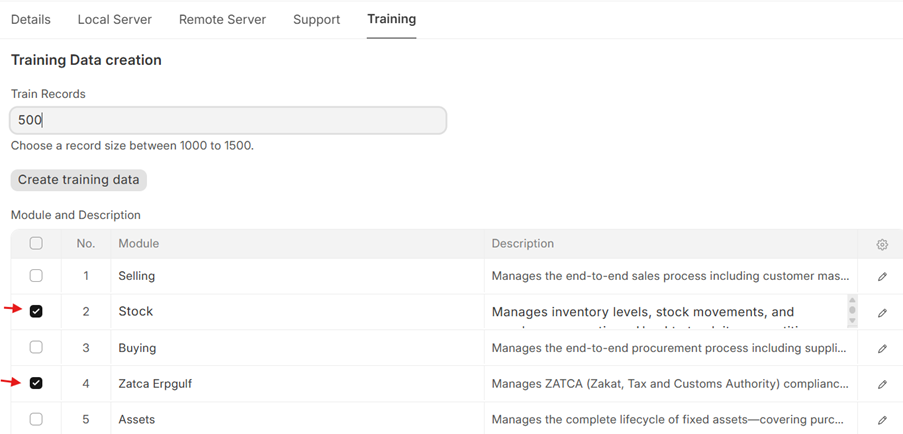
1. Add Modules
Select modules (Stock, Selling, etc.) and add custom descriptions
2. Set Size
Enter desired record size (Recommended: 500–1000 for real training). And check the module in the table for which you wanted to generate train & validation data, then data generation executes in background creating the train & validation data for each module in the Module Table based on the total records size mentioned in the Train Records field.
3. Generate
Click Create Training Data to start the process.
The system automatically uses Gemini for training data and Claude for validation (20%).
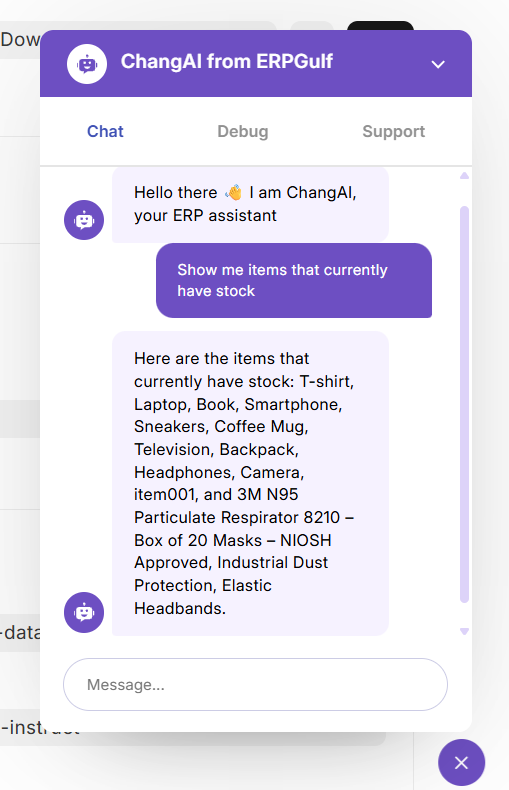
Start Chatting with Your Data
Once you have saved your settings and reloaded the page, you can now run your model directly through the ChangAI Chatbot.
Try a Query: Ask something like: "Show me items that currently have stock"
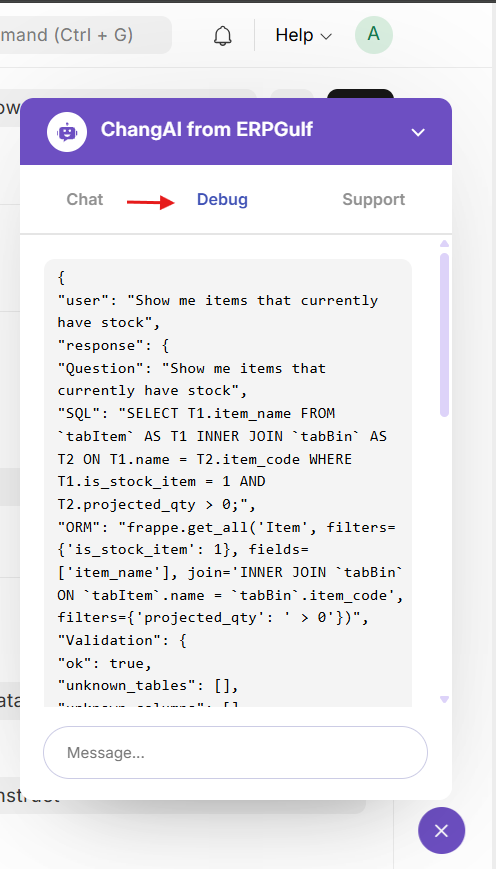
Debug Tab
For developers to view debug information at different stages of the process. The Debug tab displays:
- Master data records as Entity Debug
- Generated SQL and Frappe ORM Query
- Error display if something goes wrong
- SQL Validation Result
ChangAI Common Errors
1. Gemini Authentication Errors
If you attempt to chat before setting up your connection, you will see a "Gemini Authentication Not Configured" alert.
Fix:
- Option 1 (Free Tier): Enter your Gemini API Key in the designated field. (Get your key from Google AI Studio).
- Option 2 (Paid / Vertex AI): If you are using an Enterprise account, fill in the Gemini Project ID (required), Location (required), and attach your Service Account Credentials (required).
4669a0.png)
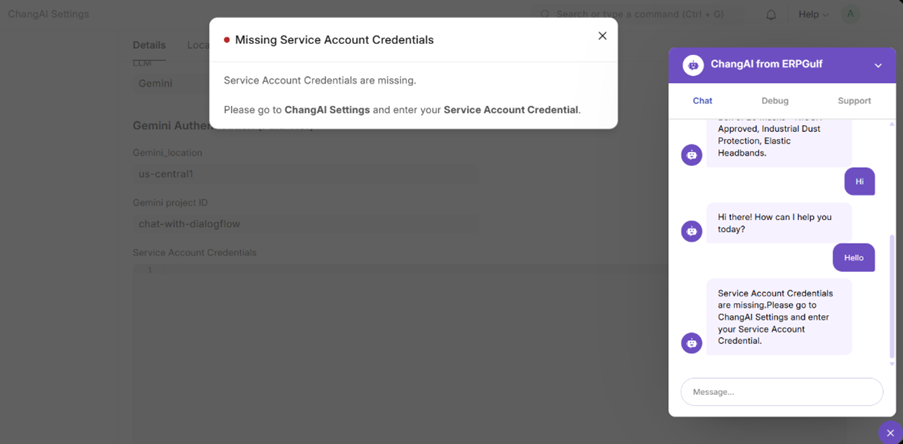
2. Missing Service Account Credentials
The Issue: You have selected the Paid / Vertex AI version, but the required Service Account JSON is missing.
The Fix: Ensure you have pasted your Google Cloud Service Account key into the Service Account Credentials field.
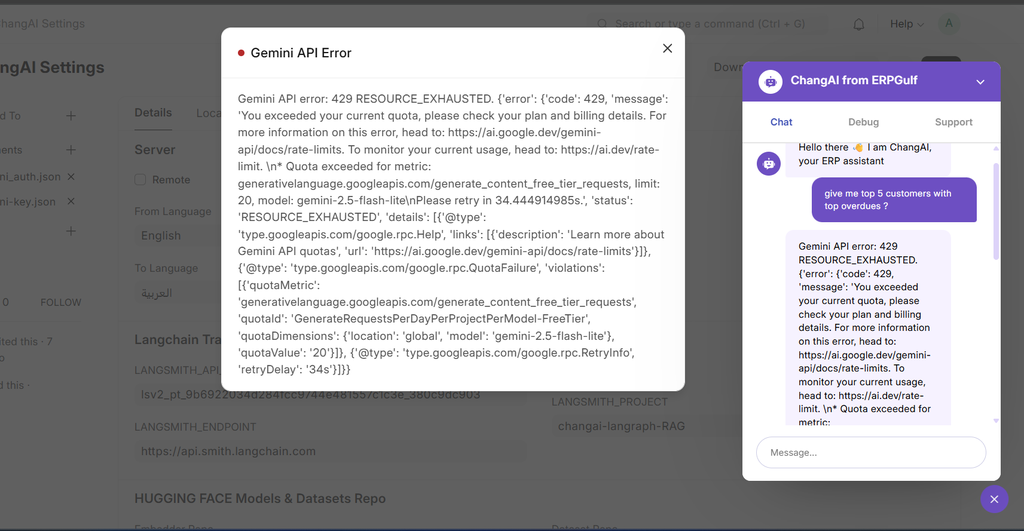
Gemini API Error: 429 RESOURCE_EXHAUSTED
The Issue: You have exceeded the rate limit for the Free Tier.
The Fix: Wait a few moments before asking another question, or consider switching to the Paid Tier for higher limits.
Missing API Keys (Claude or OpenAI)
The Issue: One of the required keys for training or schema enrichment is missing.
The Fix: If you are running training data generation or updating the schema, ensure the Claude API Key or OpenAI API Keyis filled in the Settings.
e6214e.png)
Embedding Model Required Error
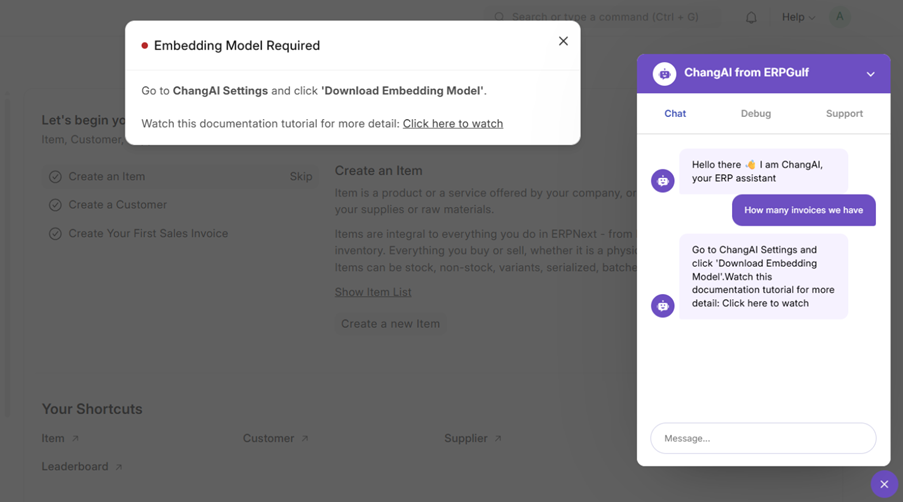
The Issue: You are trying to chat, but the system has not downloaded the model used to search your ERP schema.
Fix:
- Click the “Download Embedding Model” button at the top of the ChangAI Settings document.
- It takes only a few seconds. Once the download is complete, click Save and perform a Hard Refresh (press Ctrl + R or Cmd + R) to initialize the model.
- You can now start running your queries.
For a complete walkthrough and visual setup guide, you can watch the full explanation video posted on our YouTube channel:
🎥 Watch the ChangAI Setup Tutorial Here
Need Help?
If you have any doubts, encounter bugs, or want to suggest new features, please post an issue on our official GitHub repository. We are actively monitoring and ready to assist!